Sometimes in SSIS, You Just Need to Wait

In one SQL Server Integration Services (SSIS) package Data Flow, I have two OLE DB Commands that have to run one after the other.

image

The problem is that I am updating the same table in a Microsoft Access 2000 Database in both steps.  So, when there are many records, the second OLE DB Command throws an error complaining about the table being locked.  Of course, the table is locked by the first OLE DB Command that needs just a few more seconds to finish what it was doing. 

So how can I give enough time for the first OLE DB Command to finish before invoking the second one?  Well, in this particular case, I am blessed with the fact that I am pretty much guaranteed that there will most likely never be more than 40 records to go through this data flow when it runs (this information is from a single provider doctor office and 40 is the most patients he can see in one day).  So, all I need is a stop gap. 

The solution is to add a Script Component between the two OLE DB Commands.  Once there, edit the Script Component and add the following two lines:

image

What we are doing is calling the Sleep function in C# and telling it to count to 10 (the argument is in milliseconds).  This way, the first OLE DB Command has 10 seconds to finish; thereby unlocking the table, before the next one begins – and with 40 records that should be plenty of time.

I do not claim this solution to be elegant; however, it does work as intended and it solves the problem.  I welcome more elegant solutions in the comments.

For more information about the System.Threading.Thread.Sleep() function, see this MSDN web page.

James

Using Group Policy to Enable Network Discovery in a Domain

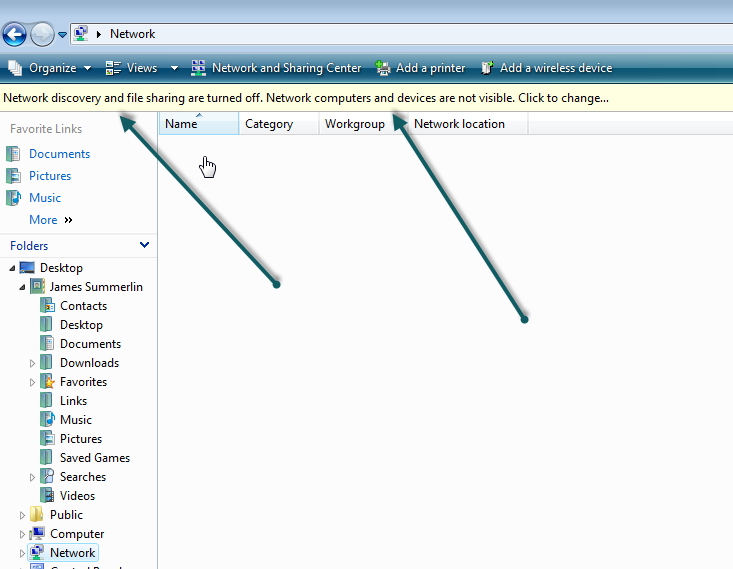
If you use Windows Vista or Windows 7 in a domain, you’ll notice that users probably can’t browse network resources such as file shares.  Also, when they do try to access a file share by typing in the URL to it, they’ll get a menu in Windows Explorer asking if they want to enable Network Discovery. 

image

Enabling network discovery requires Administrative rights and, subsequently, throws up a UAC prompt.  If your user is set up as a true Standard User, the UAC prompt will ask for an Administrator username and password. 

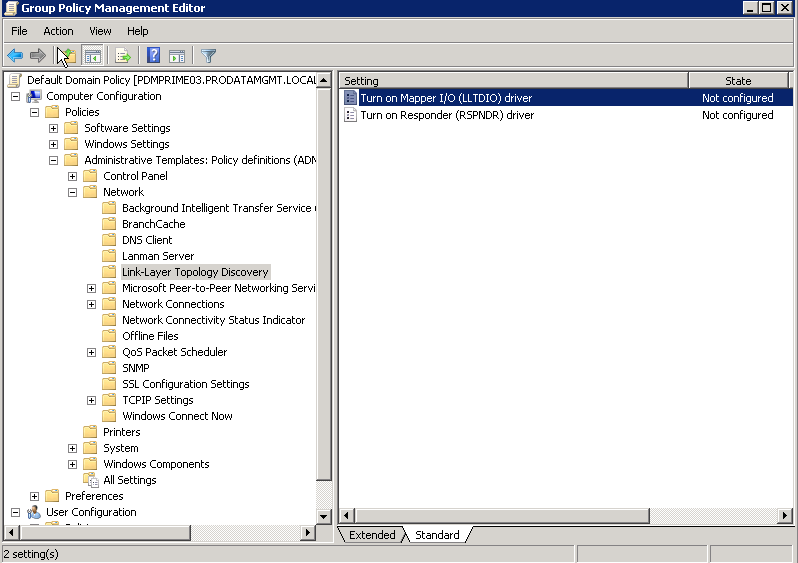
Obviously, this is not ideal if you have set up several machines at one time and aren’t about to give your users Administrative rights.  There is a nice solution, however.  On a domain controller, open up the Group Policy Management tool under Administrative Tools and navigate to:

Computer Policy\Policies\Administrative Templates\Network\Link-Layer Topology Discovery.  There are two settings there. 

image

The first setting allows the computer to find network resources such as file shares.  The second setting allows other computers to find this one.  You should certainly enable the first.  The second is dependent on whether you are sharing anything from this computer.

James

If Connecting to Someone Else’s FTP/SFTP/FTPS Server Using SSIS, Be Kind

In SQL Server Integration Services, there is a FTP Task you can use to upload and download files to or from, respectively, a FTP site.  If you need to upload or download from a SFTP or FTPS site, you’ll need Ivan Peev’s SFTP Task from CozyRoc (www.cozyroc.com).  I’ll have a lot more to say about Ivan and his superb suite of tools for SSIS later.  The issue we are talking about today is showing some common courtesy to the owner of the FTP site via a way you probably haven’t thought of.

A few months ago, I got a call from Joel Hoover who maintains the FTP site for RealMed, our clearinghouse we use to send electronic claims through (www.realmed.com).  Joel informed me that, according to his logs, when we downloaded or uploaded files to his site, we were making upwards of almost 500 connections per day.  After doing some quick math, I realized that we should, at most, be making about 6 connections per day since we only download or upload files from their site 6 times a day, so where did he get 500 from?  I informed him that this must be some sort of mistake but then he emailed me a screenshot of the logs with concrete evidence that, yes, we were connecting to this site around 500 times per day – sometimes more.  I did some digging and found the culprit. 

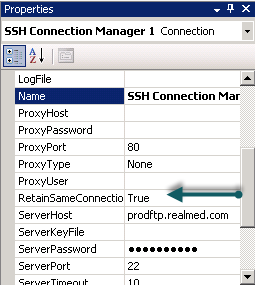
In SQL Server Integration Services, each Task that executes something against a data source must have a Connection Manager.  The FTP Task is no exception.  It has a FTP Connection Manager (or SSH if you are using Ivan’s tool).  And, like most of the other Connection Managers, it has configurable properties – and I’m betting some of you know where I’m going with this already.  Here is a screenshot:

image

Notice the properly value RetainSameConnection.  By default this is typically set to FALSE.  You have to remember to set it to TRUE.  So, what was happening is that as I looped through all the files on Joel’s FTP site in my SSIS package, I was constantly:

Open connection
perform some operation
Drop connection
open connection
perform some operation
drop connection
open connection
perform some operation
drop connection

You can probably see how the FTP owner, Joel, was freaking out over this.  By changing that one value, I was able to reduce our number of connections from well over 500 down to about half a dozen for the entire day.  By setting the value of RetainSameConnection to TRUE, the first connection made to the FTP site is retained for all future uses of that Connection Manager throughout the life of the SSIS package.

In fact, I would say that, unless you are changing your connection string in your connection manager (i.e. looping through csv files, for example), I would recommend always changing the value of RetainSameConnection to TRUE.  This will reduce the overall overhead of your SSIS package and not hammer your data source so much.

James

Paul Thurrott and Raymond Chen

Paul Thurrott is one of my favorite authors and I do follow his blog religiously.  Paul has written books such as Windows 7 Secrets which can be found on Amazon.com here.  He is also currently working on Windows 8 Secrets, his book about the new Windows operating system due later in 2012.  Be sure to check out his site – I have the link on the right.

Raymond Chen is my programming god and I also follow his blog religiously.  He is a developer at Microsoft on the Windows Shell team which is Windows Explorer, the Start Menu, and desktop.  He also has a book at Amazon.com, The Old New Thing, which is a must-read for all Windows developers.  Do check out his blog, The Old New Thing.  Again, link on the right.

A few years ago, I was not able to go to one of the big Microsoft events of the year after spending a lot of time planning to go.  However, Paul and Raymond were going.  So, I got brave and emailed both of them, explaining my plight, and I requested a picture of the two of them together.  I honestly did not expect a response so imagine my surprise when they both responded and made plans to meet each other!  They even kept copying me on the email exchange – including sharing phone numbers!  I barely expected them to respond, but to actually charge me with that kind of trust was shocking to say the least. 

I found the picture digging through my files so I thought I would share.  Raymond Chen (left) and Paul Thurrott (right).

raymondandpaul

James

Accessing a remote file share in SQL Server Integration Services

Imagine the following scenario or something close to it:

  • You have an IPSEC VPN to another network from yours.
  • There are some CSV (or other) files on a file share that you need to access.
  • The computer owning the file share is not a member of your Windows domain.
  • For some reason (just pick one) the idea of installing a FTP service or other thing on the remote computer is not an option.

This presents a problem because, unless the person who owns the remote computer is willing to seriously compromise security (and you have the guts to ask him to do so), you aren’t getting to those files using SSIS – at least not in a completely automated fashion.  Or are you?

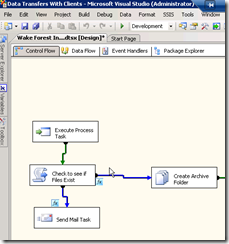
Using SQL Server Integration Services, you can access a remote file share with a username and password provided by the remote computer owner while SSIS is running as a scheduled task using the SQL Agent – completely automated.  Check out the following screen shot.
image

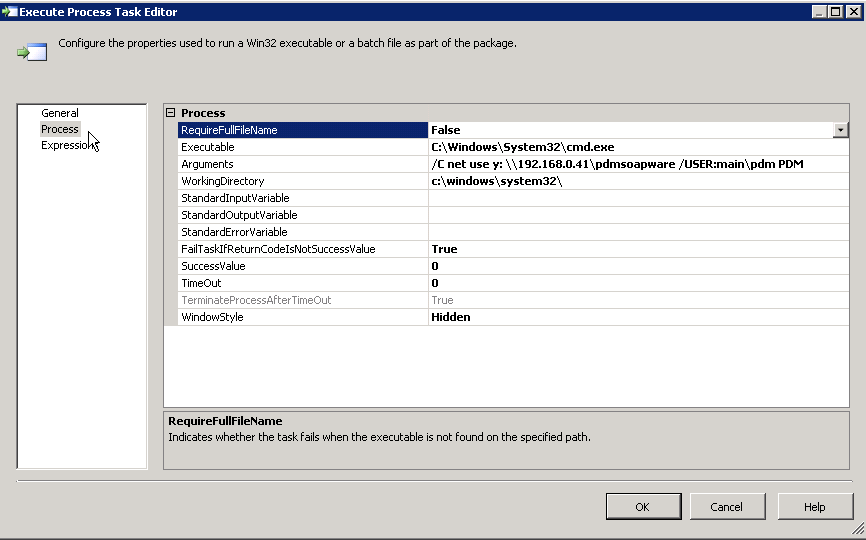
The rest of the SSIS package is cut off as it is irrelevant to our discussion.  We are interested in, specifically, the Execute Process Task.  Let’s double-click on that task to see what’s up.
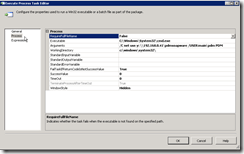
image

In the execute process task we are doing something I am certain most of you have done before – use the command interpreter – cmd.exe – to map a network drive using the NET USE command.  For those that need a refresher on the NET USE command, visit this TechNet web page.

Let’s go through the fields to see what we have.

  • RequireFullFileName – False

Indicates whether the task fails if the executable is not found in the specified path. We aren’t worried about this since we know CMD.EXE is in %windir%\system32. 

  • Executable – c:\windows\system32\cmd.exe

The fully qualified path to the executable you want to run.  I assume you have installed Windows to the default directory. Use %windir% if you are not sure or have Windows installed some place else.  So that would be %windir%\system32\cmd.exe.

  • Arguments – /C net use y: machineIP\sharename /USER:username password

Specifies the arguments for the executable. In this case, the NET USE command and its arguments.  Also, notice that we are throwing the “/C’” switch to cmd.exe. That means to carry out the command specified by string and then terminate.  We don’t want a command prompt lingering around after we are done.  Basically, do your job and leave is what we are saying.

  • WorkingDirectory – c:\windows\system32

Specifies the working directory of the executable. Set to the path that cmd.exe is found in. Use %windir% if you are not sure or have installed Windows elsewhere.

  • FailTaskIfReturnCodeIsNotSuccessValue – True

If we get a failure code for the return value of the command, then fail the task.  You, in most cases I’m sure, want this to be true.

  • SuccessValue – 0

Obviously, we must spell out the success value to look out for.  CMD.EXE usually returns a value of 0 if a command is successful.

  • TimeOut – 0

It should take no time at all to map a drive.  The default value is fine.

  • WindowsStyle – Hidden

Remember, we are running this fully automated.  You probably will not even be logged on the computer when this SSIS package runs.  Therefore, you do not want a Window.

Once this task runs in SSIS, you should then be able to access any files in the remote file share.  Do keep in mind that what you can do with those files is up to the remote administrator.  If you cannot write to the files and need to, you may need to ask the remote administrator for write privileges.  Also, accessing this drive will work as long as the SSIS package is executing.  Once execution of the SSIS package is complete, the file share access goes away as it is not persistent. 

I’d be interested to know if this helps anyone.

James
Quick Intro to the Juniper SRX Series Security Services Gateway Part II

In this second installment of our quick intro (see part I), I thought I would cover some of the performance features of the SRX.  On this blog, I will be speaking primarily about the SRX 100 and SRX 210.  For obviously financial reasons, I will not be covering information on the higher models as I doubt I’ll be working on one of those any time soon.  Fortunately, one of the best features of the SRX series is that, unlike other platforms, the base functionality remains the same despite going to a higher model (e. g. SRX 500 or something).  This means that setting up, for example, an IPSEC VPN on a higher end SRX is the exact same as it would be for a 100 or a 210.  This is a tremendous advantage over competing platforms that require to you to learn an entirely new interface (GUI or command line) the higher up their line you go. 

Anyway, let’s get on with the performance metrics.

For the SRX 100:

Service

Capacity

Connections Per Second 2,000
Max Firewall Throughput 650 Mbps
Max IPS Throughput 60 Mbps
Max VPN Throughput 65 Mbps
Max Anti-virus throughput 25 Mbps
Max Concurrent Connections 16k (512MB) | 32K (1GB) **
Max Firewall Policies 384
Max concurrent users Unlimited
Max IPSEC VPN connections 128

For the SRX 210, we see about a 10% performance increase.

Service

Capacity

Connections Per Second 2,000
Max Firewall Throughput 750 Mbps
Max IPS Throughput 80 Mbps
Max VPN Throughput 75 Mbps
Max Anti-virus throughput 30 Mbps
Max Concurrent Connections 32k (512MB) | 64K (1GB) **
Max Firewall Policies 512
Max concurrent users Unlimited
Max IPSEC VPN connections 256

** All SRX models come in at least two modes:  Standard and High Memory.  The SRX 100 and SRX 210 both come standard with 512MB of RAM.  High memory mode gives them 1GB of RAM.  In order to use any of the Unified Threat Management (UTM) features (e. g. anti-virus, etc.) you MUST have the high memory mode model.  Furthermore, the SRX 100 can be upgraded from 512MB to 1GB by purchasing an unlock key; however, all other models are hardware locked – meaning they cannot be upgraded.  Therefore, it is the recommendation of this blog author that you always purchase the high memory mode model.  It may cost a few more bucks, but you always have the option of purchasing the UTM features later if you wish.  If you get the standard mode model, you cannot upgrade (unless it is the SRX 100) and you cannot use any of the UTM stuff.  I’ll be covering UTM in a later post.

Getting past that, those performance numbers aren’t bad.  Especially considering the high memory mode SRX 100 is $664.99 and the high memory mode SRX 210 is $944.99 from CDW according to the website as of today’s date. 

Speaking of the SRX 210, you can get additional features such as two Power Over Ethernet ports, but I’ll cover additional features part three. 

James

Follow-Up on Hyper-V Recommendations

Previously, I wrote a post about my recommendations for Hyper-V virtualization.  One of the key factors I spoke of was dynamic versus fixed virtual disks.  I also mentioned pass-through disks.  Specifically, I made two points:

  1. Do not use a dynamic disk with any relational database. This includes, but is not limited to: SQL Server, Oracle, DB2, Microsoft Exchange (yes, it uses a relational database to store your email based on the Jet Engine from Microsoft), and so forth
  2. Unless you have a bleeding need for speed (i.e. you run the New York Stock Exchange), do not go out of your way to use pass-through disks.

My friend Aidan Finn, Microsoft MVP for virtualization, recently wrote a post referencing another article that seems to confirm most of what I’m saying but also adds some other very important considerations.  You should check it out by way of Aidan’s excellent blog.

James

The Disconnect Between Big Consultants and Small Companies

I have the pleasure of knowing some outstanding people.  Many of them work for big companies and we share ideas all the time.  Some of these people are not employees, but are consultants.

When speaking with these individuals, I keep running across an interesting problem.  It’s clear to me none of them have ever worked with or for a truly small company before.  An example of a small company would be a doctor’s office with 1 – 5 providers.  Or perhaps a small billing center with only 20 or fewer employees.  You can tell they have never worked with such companies because when they make recommendations for how IT for the small company should be set up, you can watch the owners become horrified as the amount of money the consultant wants to spend goes up and up and up.  Big company consultants are rarely in touch with the budget constraints of small businesses. 

I was once on the phone with a consultant and was telling him about my IT setup at my job.  I mentioned that I had two Hyper-V hosts and about 8 virtual machines.  The consultant was dumbfounded when I explained that I did not have two redundant backup servers and was not managing my virtual machines using Microsoft System Center.  What the consultant did not understand was that the cost of two more servers and System Center would have easily doubled our upgrade costs which were already around $22,000 and the business owner would never have agreed to it.  I’m not saying the consultant’s ideas were bad ideas, they weren’t, just not in synch with the needs of a small business’s budget constraints. 

Many of the consultants, and even some sales reps, I know don’t seem to understand why they always lose their small business clients.  Small businesses just can’t throw around $50,000 on IT upgrades on a moment’s notice.  Yes, they will have to do without some of the nice redundancy and certainly most of the cool toys, but I would argue that most small businesses don’t need all that stuff.  They can handle a day’s downtime in most cases and a day’s lost data in most cases.  As long as they have good 24 hour backups, they are OK.  Yes, of course, losing a day’s worth of data would be painful, but it is far from the end of the world.  If anything, the consultants should explain the pros and cons of what the small business is getting for their money, rather than just expecting them to buy whatever is put on the table like the big boys do.

James

Quick Intro to the Juniper SRX Series Security Services Gateway

I’ve been using the Juniper SRX for a few months now and I have to say I like it.  They are FAST, cost effective, and get things done.  However, make no mistake that they do have a high learning curve.  Don’t think you’re going to jump into learning these things super fast like you did your Cisco or whatever counterpart.  For one thing, pretty much everything is done via command line.  Sure, they do have a graphical user interface, but no one uses it and the documentation doesn’t reference it that much.  In fact, in this blog I won’t even be covering the user interface.  We’ll be using command line only.

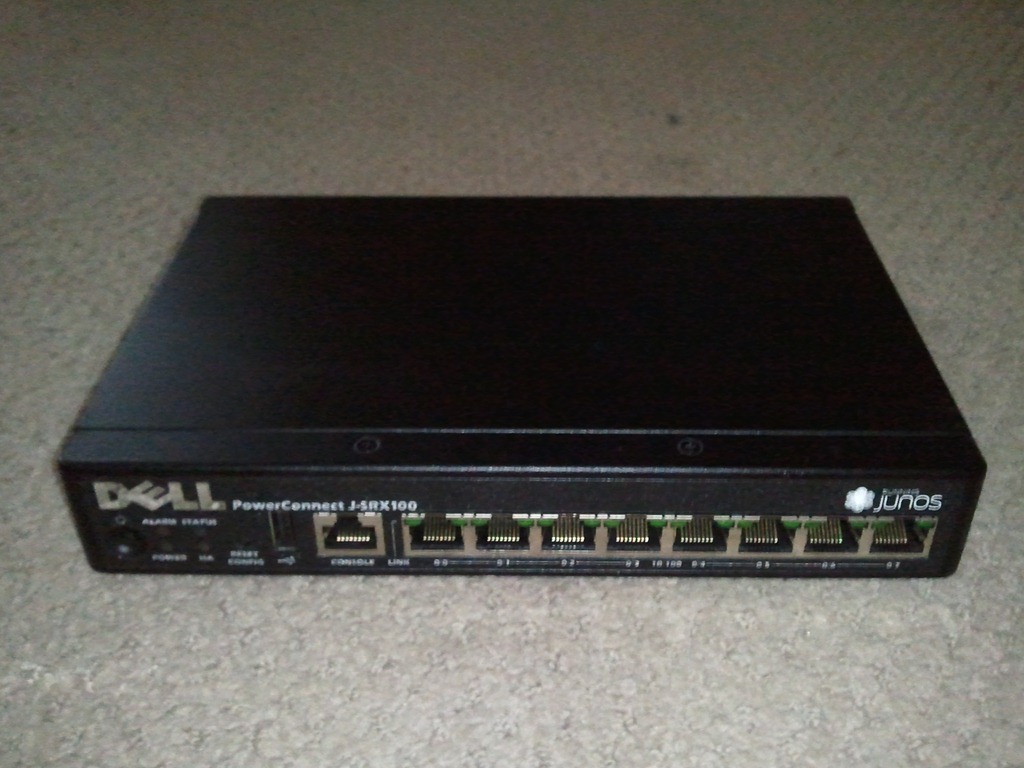
Here is a quick pic of the Juniper SRX Series Security Services Gateway, specifically the SRX 100:

WP_000286

This unit is a bit larger than my hand.  The higher end of the series can be the size of a small refrigerator.  Notice that it has the Dell logo on it.  For a time, Dell contracted with Juniper to sell the SRX under the PowerConnect name as the PowerConnect JSRX Series.  The devices are still Juniper through and through, the only thing Dell did was pain the front of the box black and put their name on it.  Unfortunately, the relationship between Dell and Juniper has dissolved because of Dell acquiring SonicWall so Dell no longer sells Juniper products anymore.  Bummer.  Maybe what I have will be a collector’s item one day.

As we move forward, I’ll be covering the things I have learned about these cool devices.  While I’m certain most of you already have some type of solution in place for your security needs, who knows, it might be nice to know there is another option out there.

James